
Problem
One or more server roles are not starting on your Informant server. In the Informant Configuration Manager under Server Roles, one or more server roles appears with "Not Running" and restarting the server does not resolve the issue:
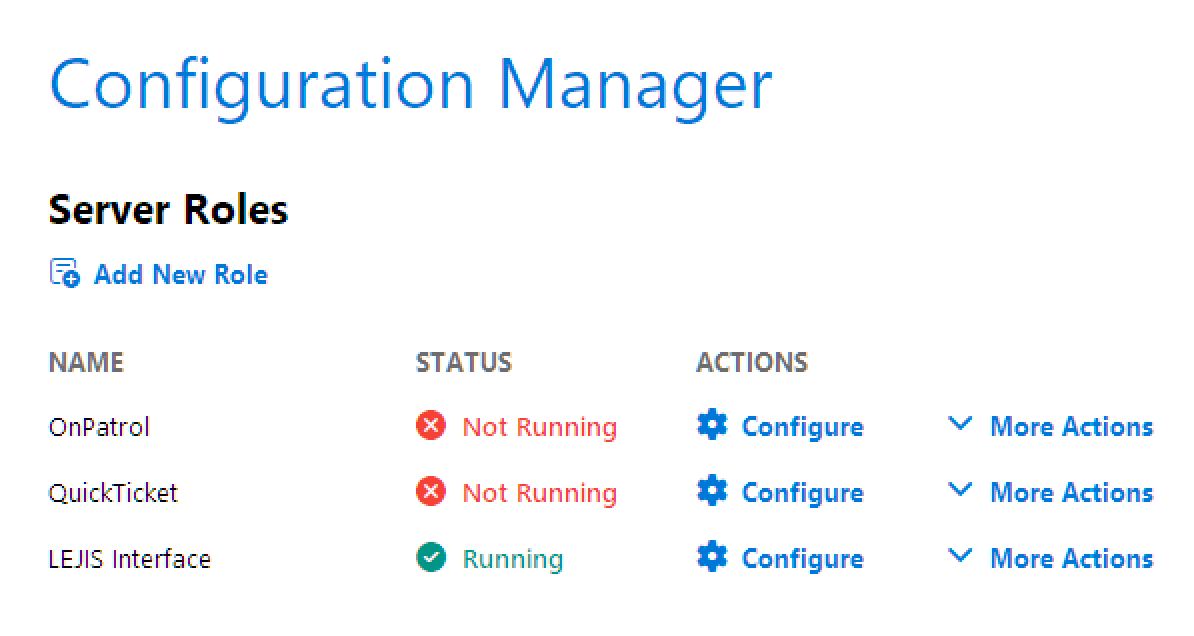
Furthermore, if you try to manually restart a server role by clicking More Actions and selecting Start, one of the following will occur:
- An error message appears, often indicating what the underlying issue is.
- A error message window appears, but with no message (i.e., a "blank" error window).
- No window appears. The status of the server role may change momentarily, but then reverts back to "Not Running."
This can lead to a partial loss of functionality for end users. For example, if officers access Informant via OnPatrol, but the OnPatrol server role is not starting, they will not be able to use Informant remotely via OnPatrol until the server role is up and running again.
Note: This issue can manifest as only one, more than one, or all of your server roles appearing as "Not Running" in the Informant Configuration Manager.
Cause
Server roles are installed as Windows services and as such they run under a Windows user account: the user account username and password are supplied when a server role is installed for the first time. If the Windows user account that a server role was installed under has changed or Windows encounters a problem authenticating the user account, the server role will no longer start after an Informant update is installed, or after the server is restarted.
There are a few reasons why the user account credentials for a server role may stop functioning:
- The Windows user account credentials used to install the server role(s) are for a user account that has since been disabled in Windows, or deleted.
- The Windows user account credentials used to install the server role(s) are for a user account whose password has expired, or whose password has been changed.
- If the user account is an Active Directory or Entrata ID account, delays in processing the authenticating due to needing to authenticate the user over the network can sometimes cause login errors that prevent a service from starting up.
Resolution
Quick fix
You can try the following fixes first if you suspect the issue is related to the user account's status or a recent password change:
- If you know which account was used when installing the server role(s), re-enable the account in Windows.
- If the user account's password has expired, update the password for the account in Windows.
- After ensuring the user account is up-to-date, open the Informant Configuration Manager and click Server Roles.
- For each server role that is "Not Running," click More Actions and select Start. Ensure all services have started and now say "Running."
If any services are still showing as "Not Running" after the above steps, reinstall the services with updated credentials for the user account:
- Make a note of which services are currently listed as "Not Running."
- For each server role that is showing as "Not Running," click More Actions and select Uninstall.
Note: Any configuration for the server roles that are uninstalled will be retained, so no reconfiguration will be required after reinstalling them.
- Click Add New Role.
- Under "Select server roles to install," select each server role you identified in step 1.
- Under "Enter Windows account credentials," enter the password for the user account listed in the Username field. If you want to install the server roles under a different user account, you can also replace the username with the new desired username.
- Click Add Roles.
- If the credentials were valid, the server roles will be reinstalled and should now show as "Running."
If any server roles still show as "Not Running," reach out to the Informant support team and send us the error logs and Windows event logs from the server. See How to locate and send Informant error logs and How to collect and send Windows event logs for details on how to do this.
Long-term fix (recommended)
We recommend creating a dedicated local Windows administrator user account on the computer where the server roles are installed, and setting it to have a password that doesn't expire, so that server roles will continue to run uninterrupted, even if passwords are changing for other user accounts in your environment.
Using a local user account also helps avoid issues that can occur with Active Directory and Entrata ID user accounts by avoiding interactions with the network.
- Create a new local Windows administrator user account: we recommend called this account "informant" for easy identification. Give this user account a password, but set the password to never expire.
- Open the Informant Configuration Manager. Click Server Roles and make a note of all installed serve roles, regardless of whether they are currently running or not.
- For each server role, click More Actions and select Uninstall.
Note: Any configuration for the server roles that are uninstalled will be retained, so no reconfiguration will be required after reinstalling them.
- Click Add New Role.
- Under "Select server roles to install," select each server role you identified in step 2.
- Under "Enter Windows account credentials," enter the username and password for the account you created earlier.
- Click Add Roles.
- Verify that all server roles are running.