
Problem
The information in this article applies if you experience the following symptoms at the same time in Informant:
- The "Preview" area doesn't display an image thumbnail when an image is selected in a record's Attachments tab. For example, if a JPEG (.jpg) file is attached to an image, and the "Preview" area doesn't show the image, but instead shows the file extension (i.e., "jpg"):
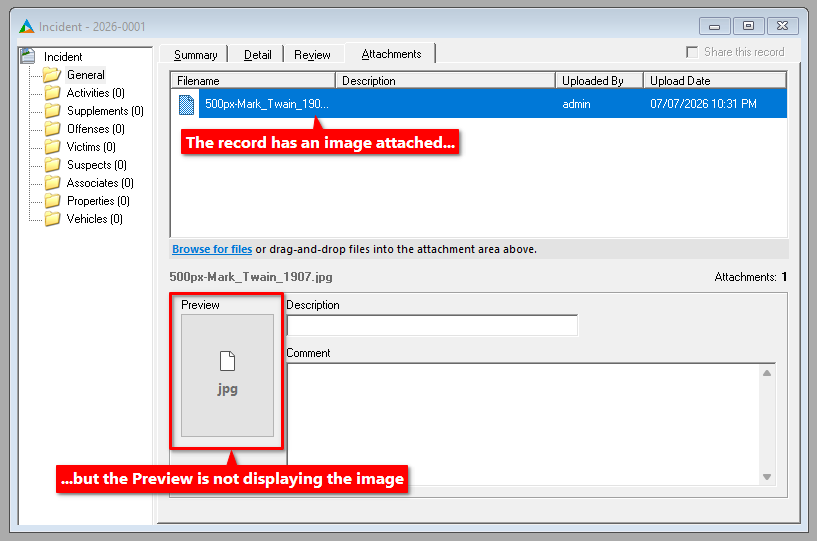
- When you preview or print a report for a record that has images, and Include Images is selected, but no images are shown on the report.
If these issues are occurring for one or more Informant users, continue reading. In some cases, these issues may only occur on specific computers or for specific Windows user accounts.
In some cases, double-clicking an image may still display the original image, while in other cases, you may get an error message stating that there is no program associated with the file type.
Cause
This can occur if the Windows Registry has been corrupted or is missing file type information for known image file types. This can occur as a result of installing or uninstalling other software that changes these Registry entries, a faulty Windows update, or malware installed on the computer.
In some cases, this can also indicate a deeper issue with the computer's operating system.
Resolution
To fix this, you or your IT can run a few commands in the Windows Command Prompt to restore corrupted system files and Registry settings. These commands will only repair common issues in the Windows Registry and with Windows system files and will not remove the user's files or reset the operating system, and are generally considered safe to run.
- Log in to the affected computer with a Windows administrator account.
- Type "cmd' in the Windows Start menu. When "Command Prompt" appears, select Run as Administrator.
- In the Command Prompt window, enter the following command and press Enter:
DISM.exe /Online /Cleanup-Image /RestoreHealth
Note that this command may take time to complete. Wait for it to finish. - Next, enter the following command and press Enter, and wait for it to finish:
sfc /scannow
- Restart the computer.
- Close and log back into Informant, and open a record that contains images.
- Verify that selecting an image displays the image in the "Preview" area, and that previewing or printing a report with Include Images selected now displays the images at the end of the report.
- We strongly recommend that you or your IT personnel also check the computer for viruses or malware. If the computer is running slowly or experiencing issues with other applications, refreshing the computer and reinstalling Windows (after copying and backing up important files to another location) may be warranted.