
If you are looking to add more users to Informant, or you have been encountering problems due to your licenses getting used up when multiple users are logged in at the same time, you may need to get additional licenses or might want to consider changing the licensing model you currently have.
Summary
- Informant licensing models
- Check how many licenses you have
- How many user accounts do I currently have?
- Tips for reclaiming seats
- Tips for when you run out of concurrent user licenses
Informant licensing models
Informant has two licensing models that each work differently and are designed for different scenarios:
- Concurrent licensing: With concurrent licensing, you have a shared number of licenses that allow a certain number of users to be logged into Informant simultaneously. Concurrent licenses are also sometimes called "floating licenses" because they are not assigned to specific individuals, but instead are shared among all your users. For example, if you have 5 concurrent licenses, up to 5 users can be logged in and using Informant at the same time. This model can be useful if you have many individual Informant users, but only a few users will need access to Informant at any given time.
- Seat-based licensing: With seat-based licensing, you purchase one "seat" for each active user account in Informant. This ensures that each individual user will have dedicated access to Informant, regardless of how many other users are logged in at the same time. For example, if you want to set up 5 user accounts in Informant, you'll purchase 5 seats when using seat-based licensing.
Check how many licenses you have
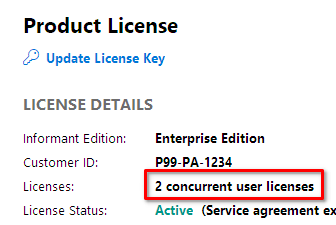
The Information Configuration Manager shows how many and what type of licenses you have on the Product License page. To view your license:
- Log in to a computer where Informant is installed. You must be logged in to the computer with a Windows user account that has administrator rights on the computer.
- In the Windows Start menu, type "Informant Configuration Manager" and click Informant Configuration Manager in the menu when it appears.
- Click Yes if prompted to allow the app to run.
- Click Product License in the left sidebar.
- The Licenses field displays how many licenses you have and what kind of licenses they are (concurrent user licenses or seats):
How many user accounts do I currently have?
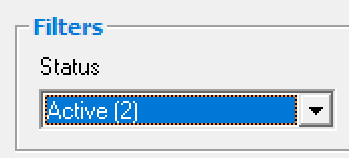
You can check how many active user accounts you have in the User Accounts area in Administration. This is useful for determining how many seats you're using on a seat-based licensing plan or if you want to switch to seat-based licensing and need to determine how many seats you'll need:
- Log in to Informant with an account that has access to Administration.
- Click Administration under Common Tools in the left navigation bar.
- In Administration, click Update > User Accounts.
- Look for the number next to "Active" in the Status drop-down. This number is the number of active users you currently have set up in Informant:
Tips for reclaiming seats
If you are on a seat-based plan and are unable to add new users due to reaching your current number of seats, you have a few options:
- Disable the default "admin" account: If you haven't already, you can disable the default "admin" account to make a seat available for another user account (make sure at least one other user has administrator access in Informant before doing this).
- Disable inactive/old user accounts: Disable any user accounts that you no longer need to make those seats available to other users.
- Purchase additional seats: If you don't have seats to spare but need to add one or more additional users, reach out to us for information about obtaining additional seats.
Tips for when you run out of concurrent user licenses
If you are on a concurrent licensing plan, you might run into situations where users can't log in because your concurrent licenses are in use. You can resolve this in a few ways:
- Ask other users to log out: If other users are still logged into Informant but are not using the program, ask them to close Informant to make a license available.
- Terminate inactive user sessions: If you have access to Administration, you can view and terminate user sessions to end user sessions for users who are unavailable but have left Informant running on their machine. You can access the list of user sessions by opening Administration and going to Tools > Manage User Sessions.
- Purchase additional concurrent licenses: If you find that you are frequently running out of available licenses, reach out to us for information about obtaining additional licenses.